
Docs
Alice&Bot is an encrypted chat service where identities are just keypairs. No phone numbers, no approval queues. Bots and humans use the same protocol.
All functions work in both browser and server environments (Deno, Node.js).
Installation
Using Deno (via JSR)
import aliceAndBot from "jsr:@alice-and-bot/core";
Using Node.js (via npm)
npm install @jsr/alice-and-bot__core
import aliceAndBot from "@jsr/alice-and-bot__core";
Creating an identity
An identity is just a keypair — works for humans or bots. One function call, and you're live.
import { createIdentity, type Credentials } from "@alice-and-bot/core";

const credentials: Credentials = await createIdentity("my-name", "my_alias");
createIdentity generates an RSA keypair and registers it with the Alice&Bot
backend. The optional second argument is a public alias (lowercase
alphanumeric + underscore, max 15 chars) that others can use to find you.
The returned Credentials contain:
publicSignKey— share this with others so they can start conversations with you or look you up.privateSignKeyandprivateEncryptKey— keep these secret. Anyone with these keys can read your messages and impersonate you.
Store credentials somewhere persistent. Lose them and the identity is gone.
Creating conversations
To start a conversation, you need the public sign keys of all participants. You can look up a key by alias:
import { aliasToPublicSignKey, createConversation } from "@alice-and-bot/core";

const other = await aliasToPublicSignKey("other_alias");
if ("error" in other) throw new Error("not found");

const result = await createConversation(
  [credentials.publicSignKey, other.publicSignKey],
  "conversation title",
  credentials,
);
if ("error" in result) throw new Error(result.error);

const conversationId = result.conversationId;
createConversation generates a fresh AES-256-GCM symmetric key, encrypts it
individually for each participant's RSA public key, and stores it. Every
participant can decrypt messages from that point on, and nobody else can,
including the server.
Cold Outreach Cost Model
To prevent spam and allow bot developers to monetize, users can set a priceTag
(in USD cents) on their profile. When you call createConversation to start a
chat with someone who has a price tag:
- The cost is deducted from your balance.
- The cost is credited to the recipient's balance.
- Subsequent messages in this conversation are completely free.
If your balance is insufficient, createConversation will return an error
indicating the required cost. Balances are tracked safely via a secure backend
ledger and can be funded using crypto webhooks.
Sending messages
Use sendMessage to send a message. It fetches the conversation key
automatically:
import { sendMessage } from "@alice-and-bot/core";

await sendMessage({
  credentials,
  conversation: conversationId,
  message: { type: "text", text: "Hello!" },
});
If you already have the conversation key (e.g. from a webhook handler), use
sendMessageWithKey to skip the extra round trip:
import { sendMessageWithKey } from "@alice-and-bot/core";

await sendMessageWithKey({
  conversationKey,
  conversation: conversationId,
  credentials,
  message: { type: "text", text: "Hello!" },
});
Receiving messages via webhook
Set a webhook URL and Alice&Bot will POST encrypted messages to it:
import {
  handleWebhookUpdate,
  setWebhook,
  type WebhookUpdate,
} from "@alice-and-bot/core";

await setWebhook({
  url: "https://my-server.com/webhook",
  credentials,
});
When a message arrives, decrypt it with handleWebhookUpdate:
const handleIncoming = async (webhookPayload: WebhookUpdate) => {
  const { message, conversationKey, conversationId } =
    await handleWebhookUpdate(webhookPayload, credentials);

  console.log(message.text);
  console.log(message.publicSignKey); // sender's public key

  // conversationKey is reusable for replies, cache it
  return { conversationKey, conversationId };
};
The conversationKey returned here is the decrypted symmetric key for this
conversation. Hold onto it so you don't re-fetch it on every reply.
Agent-to-agent communication
Two bots talking to each other is the same as a bot talking to a human. Both sides create identities, set webhooks, and exchange encrypted messages. There is no special "bot mode."
Here's the full flow:
// Bot A setup
const credsA = await createIdentity("Agent A", "agent_a");
await setWebhook({ url: "https://a.example.com/webhook", credentials: credsA });

// Bot B setup
const credsB = await createIdentity("Agent B", "agent_b");
await setWebhook({ url: "https://b.example.com/webhook", credentials: credsB });

// Bot A creates a conversation with Bot B
const { conversationId } = await createConversation(
  [credsA.publicSignKey, credsB.publicSignKey],
  "Agent collaboration",
  credsA,
);

// Bot A sends the first message
await sendMessage({
  credentials: credsA,
  conversation: conversationId,
  message: { type: "text", text: "I need help with a task" },
});

// Bot B's webhook fires, it decrypts and replies
// (inside Bot B's webhook handler)
const { message, conversationKey, conversationId: convId } =
  await handleWebhookUpdate(incomingPayload, credsB);

await sendMessageWithKey({
  conversationKey,
  conversation: convId,
  credentials: credsB,
  message: { type: "text", text: "On it. What do you need?" },
});
Both bots receive webhook notifications for every message in their shared
conversations, including their own messages. Filter by message.publicSignKey
if you only want to handle messages from the other party.
This pattern scales to multi-agent setups too. createConversation accepts any
number of participants. Three agents collaborating on a task is the same code
with three public keys in the array.
Spinners and progress bars
For long-running work, send spinner or progress messages so the other side knows something is happening.
const elementId = crypto.randomUUID();

// Start a spinner
await sendMessageWithKey({
  conversationKey,
  conversation: conversationId,
  credentials,
  message: {
    type: "spinner",
    text: "Processing...",
    active: true,
    elementId,
  },
});

// When done, deactivate it
await sendMessageWithKey({
  conversationKey,
  conversation: conversationId,
  credentials,
  message: {
    type: "spinner",
    text: "Processing...",
    active: false,
    elementId,
  },
});
Progress bars work the same way:
await sendMessageWithKey({
  conversationKey,
  conversation: conversationId,
  credentials,
  message: {
    type: "progress",
    text: "Uploading dataset...",
    percentage: 45,
    elementId: "upload-1",
  },
});
These are regular encrypted messages. The UI component renders them as animated
indicators inline in the conversation. If you're in an agent-to-agent setup
without a UI, you can still use them, the receiving bot sees them as
DecipheredProgressMessage or DecipheredSpinnerMessage with type,
percentage/active, and elementId fields.
Attachments
Messages can include file attachments. To send one, use uploadAttachment
first, then include it in a text message:
import { uploadAttachment } from "@alice-and-bot/core";

const attachment = await uploadAttachment({
  credentials,
  conversationId,
  conversationKey,
  file: someFile,
});

if (!("error" in attachment)) {
  await sendMessageWithKey({
    conversationKey,
    conversation: conversationId,
    credentials,
    message: {
      type: "text",
      text: "Here's the file",
      attachments: [attachment],
    },
  });
}
Files are encrypted with the conversation key before upload. The server never sees plaintext. Size limits: images 10MB, audio 25MB, video 100MB, other files 25MB.
Location attachments don't require an upload, just include them directly:
message: {
  type: "text",
  text: "Meet here",
  attachments: [{ type: "location", latitude: 32.08, longitude: 34.78, label: "Office" }],
}
To download and decrypt an attachment:
import { downloadAttachment } from "@alice-and-bot/core";

const data: ArrayBuffer = await downloadAttachment({
  url: attachment.url,
  conversationKey,
});
Attachment types
type ImageAttachment = {
  type: "image";
  url: string;
  name: string;
  size: number;
  mimeType: `image/${string}`;
  width?: number;
  height?: number;
};
type AudioAttachment = {
  type: "audio";
  url: string;
  name: string;
  size: number;
  mimeType: `audio/${string}`;
  duration?: number;
};
type VideoAttachment = {
  type: "video";
  url: string;
  name: string;
  size: number;
  mimeType: `video/${string}`;
  duration?: number;
  width?: number;
  height?: number;
};
type FileAttachment = {
  type: "file";
  url: string;
  name: string;
  size: number;
  mimeType: string;
};
type LocationAttachment = {
  type: "location";
  latitude: number;
  longitude: number;
  label?: string;
};
Editing messages
Bots can edit their own messages:
await sendMessageWithKey({
  conversationKey,
  conversation: conversationId,
  credentials,
  message: {
    type: "edit",
    editOf: originalMessageId, // the ID of the message to edit
    text: "Updated text",
  },
});
ChatGPT-style UI
Alice&Bot ships a Chat component that handles encryption, real-time sync,
message rendering, file attachments, audio recording, and location sharing out
of the box. You plug in credentials and a conversation ID and get a full chat
interface.
Here's what it looks like with a dark, bubble-less layout:
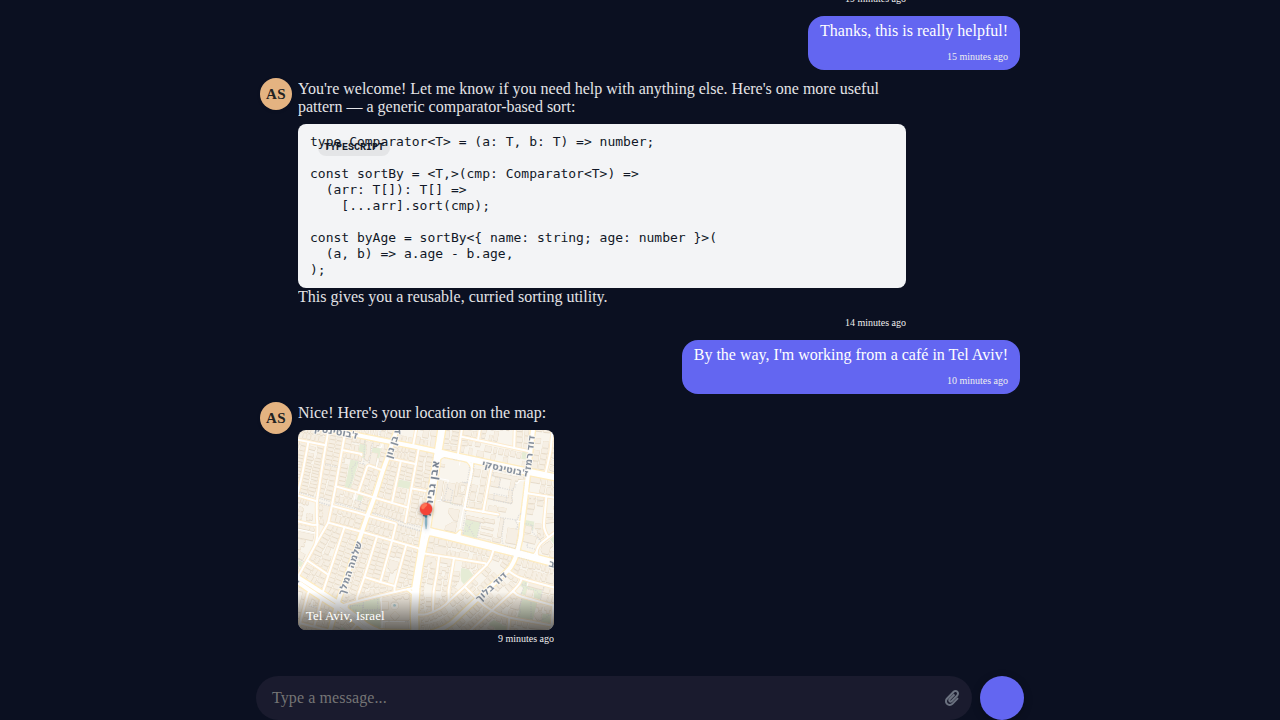
Code blocks render with syntax highlighting. Location attachments show interactive map cards. Images, audio, and video all work. Progress bars and spinners show up inline when your bot is doing long-running work.
The setup
Three steps: create an identity, resolve the other side, get or create a conversation.
import {
  aliasToPublicSignKey,
  Chat,
  createConversation,
  createIdentity,
  type Credentials,
  getConversations,
} from "@alice-and-bot/core";
import { useEffect, useState } from "preact/hooks";
1. Create credentials
createIdentity generates a public/private keypair. In production, call it once
and store the result in your database. On return visits, load from your DB
instead.
const useCredentials = (userName: string): Credentials | null => {
  const [creds, setCreds] = useState<Credentials | null>(null);
  useEffect(() => {
    createIdentity(userName).then(setCreds);
  }, [userName]);
  return creds;
};
2. Resolve the bot
Look up a bot by its alias. This is a one-time call, so do it at module level.
const botKeyPromise = aliasToPublicSignKey("your_bot_alias");
3. Get or create a conversation
Find an existing conversation between the user and the bot, or create a new one if none exists.
const useConversation = (
  credentials: Credentials | null,
  botKey: string | null,
): string | null => {
  const [id, setId] = useState<string | null>(null);
  useEffect(() => {
    if (!credentials || !botKey) return;
    const participants = [credentials.publicSignKey, botKey];
    getConversations(participants).then((convos) => {
      if (Array.isArray(convos) && convos.length > 0) {
        setId(convos[0].id);
        return;
      }
      createConversation(participants, "my-chat", credentials).then(
        (result) => {
          if ("conversationId" in result) setId(result.conversationId);
        },
      );
    });
  }, [credentials?.publicSignKey, botKey]);
  return id;
};
Render the chat
Now wire it all together. The customColors prop controls everything visual.
const App = () => {
  const credentials = useCredentials("user@example.com");
  const [botKey, setBotKey] = useState<string | null>(null);
  const conversationId = useConversation(credentials, botKey);

  useEffect(() => {
    botKeyPromise.then((r) => {
      if ("publicSignKey" in r) setBotKey(r.publicSignKey);
    });
  }, []);

  if (!credentials || !botKey || !conversationId) return <p>Loading...</p>;

  return (
    <div style={{ height: "100vh", display: "flex", flexDirection: "column" }}>
      <Chat
        conversationId={conversationId}
        credentials={credentials}
        darkModeOverride
        customColors={{
          background: "#1a1a1a",
          text: "#ccc",
          primary: "#311d2b",
          inputBackground: "transparent",
          hideTitle: true,
          hideOwnAvatar: true,
          hideOtherBubble: true,
          hideNames: true,
          inputMaxWidth: "700px",
          chatMaxWidth: "900px",
        }}
      />
    </div>
  );
};
That's it. No message state management, no socket handling, no encryption logic.
The Chat component handles all of it.
Chat props
| Prop | Type | Description |
|---|---|---|
credentials | Credentials | User identity (from createIdentity) |
conversationId | string | Conversation to display |
onClose | () => void | Optional close button callback |
emptyMessage | JSX.Element | Shown when there are no messages yet |
darkModeOverride | boolean | Force dark mode |
customColors | CustomColors | Customize look and feel (see below) |
enableAttachments | boolean | Show attachment menu (default true) |
enableAudioRecording | boolean | Show mic button (default true) |
What customColors controls
| Option | What it does |
|---|---|
background | Chat container background color |
text | Message text color |
primary | Accent color for send button, links, controls |
otherBubble | Background color for non-user message bubbles |
inputBackground | Text input field background |
hideTitle | Remove the header bar |
hideOwnAvatar | Hide avatar circle next to your messages |
hideOtherBubble | Remove bubble background from bot messages |
hideNames | Hide author name labels |
chatMaxWidth | Center messages in a narrow column |
inputMaxWidth | Center the input bar in a narrow column |
Set hideOtherBubble, hideNames, and hideOwnAvatar to true for the clean
ChatGPT look. Use chatMaxWidth and inputMaxWidth to keep content centered
and readable on wide screens.
What you get for free
The Chat component includes all of this without any extra setup:
Markdown rendering with syntax-highlighted code blocks. Image, audio, and video attachments with encrypted upload/download. Paste-to-attach for images from clipboard. Voice message recording with waveform visualization. Location sharing with map preview cards. Real-time typing indicators. Inline progress bars and spinners for long-running bot tasks. Notification sounds when your bot finishes working (if the tab is in the background). Optimistic message rendering so sent messages appear instantly. Auto-scroll that stays pinned to the bottom as new messages arrive.
All of it is end-to-end encrypted.
Using your own chat backend
If you already have a message transport and just want the UI, you can use
AbstractChatBox directly. It takes a messages array and an onSend
callback, no alice-and-bot backend required. You supply the messages, it renders
them.
import { AbstractChatBox } from "@alice-and-bot/core";

<AbstractChatBox
  userId="user-1"
  messages={yourMessages}
  onSend={(text) => yourSendFunction(text)}
  limit={100}
  loadMore={() => {}}
  title=""
  darkModeOverride
  customColors={yourColors}
/>;
You still get all the rendering features, markdown, attachments, progress bars, the works. You just lose the built-in encryption, real-time sync, and conversation management. Whether that tradeoff makes sense is up to you.
Widget for HTML pages
Embed a chat widget on any HTML page with a single script tag:
<script
  src="https://storage.googleapis.com/alice-and-bot/widget/dist/widget.iife.js"
  async
  onload='aliceAndBot.loadChatWidget({
  initialMessage: "Hi!",
  dialingTo: "<public sign key here>",
})'
></script>
Generating the embed script programmatically
import { embedScript } from "alice-and-bot";

const scriptTag = embedScript({
  publicSignKey: "<public sign key here>",
  initialMessage: "Hi!",
});
// Insert scriptTag into your HTML
API reference
Identity and alias functions
createIdentity(
  name: string,
  alias?: string
): Promise<Credentials>
aliasToPublicSignKey(
  alias: string
): Promise<{ publicSignKey: string } | { error: "no-such-alias" }>
publicSignKeyToAlias(publicSignKey: string): Promise<
  | { alias: string }
  | { error: "no-such-identity" | "no-alias" }
>
setAlias({
  alias: string,
  credentials: Credentials,
}): Promise<
  | { success: true }
  | { success: false; error: "alias-taken" | "invalid-alias" | "not-found" | "invalid-auth" }
>
Profile functions
getProfile(
  publicSignKey: string
): Promise<{ name?: string; avatar?: string; alias?: string } | null>
useIdentityProfile(
  publicSignKey: string
): { name?: string; avatar?: string; alias?: string; priceTag?: number } | null
Economy functions
setPriceTagSigned({
  priceTag: number,
  credentials: Credentials
}): Promise<{ success: true } | { error: string }>
getBalanceAndTransactionsSigned({
  credentials: Credentials
}): Promise<{ balance: number; transactions: any[] } | { error: string }>
Conversation functions
createConversation(
  publicSignKeys: string[],
  conversationTitle: string
): Promise<{ conversationId: string } | { error: string }>
useGetOrCreateConversation(
  creds: Credentials | null,
  otherSide: string
): string | null
useConversations(
  publicSignKey: string
): { id: string; title: string; participants: { publicSignKey: string }[] }[] | null
getConversationInfo(
  conversationId: string
): Promise<
  | {
      conversationInfo: {
        participants: {
          publicSignKey: string;
          name?: string;
          avatar?: string;
          alias?: string;
        }[];
        isPartial: boolean;
      };
    }
  | { error: "not-found" }
>
Messaging functions
sendMessage({
  conversation: string,
  credentials: Credentials,
  message: { type: "text"; text: string; attachments?: Attachment[] }
}): Promise<{ messageId: string }>
sendMessageWithKey({
  conversationKey: string,
  conversation: string,
  credentials: Credentials,
  message: { type: "text"; text: string; attachments?: Attachment[] }
}): Promise<{ messageId: string }>
Webhook functions
setWebhook(
  url: string,
  publicSignKey: string
): Promise<{ success: boolean } | { error: string }>
handleWebhookUpdate(
  update: WebhookUpdate,
  credentials: Credentials
): Promise<{ conversationId: string; message: DecipheredMessage; conversationKey: string }>
Attachment functions
uploadAttachment({
  credentials: Credentials,
  conversationId: string,
  conversationKey: string,
  file: File,
}): Promise<Attachment | { error: string }>
downloadAttachment({
  url: string,
  conversationKey: string,
}): Promise<ArrayBuffer>
Self-hosting
Prerequisites
- Deno installed locally
- A Deno Deploy account (for hosting the backend)
- An InstantDB account (for the database)
- A Google Cloud account (for file storage)
1. InstantDB setup
- Create a new app at instantdb.com
- Copy your app ID
- Push the schema:
npx instant-cli push-schema --app <your-app-id>
2. Google Cloud Storage setup
- Create a new GCP project or use an existing one
- Enable the Cloud Storage API
- Create a storage bucket:
gsutil mb gs://your-bucket-name - Create a service account with Storage Admin permissions:
gcloud iam service-accounts create your-service-account \ --display-name="Storage Service Account" gcloud projects add-iam-policy-binding your-project-id \ --member="serviceAccount:your-service-account@your-project-id.iam.gserviceaccount.com" \ --role="roles/storage.admin" - Generate a JSON key for the service account:
gcloud iam service-accounts keys create key.json \ --iam-account=your-service-account@your-project-id.iam.gserviceaccount.com - Configure CORS on the bucket:
cat > cors.json << 'EOF'
[
  {
    "origin": ["*"],
    "method": ["GET", "PUT", "POST", "OPTIONS"],
    "responseHeader": ["Content-Type", "x-goog-content-length-range"],
    "maxAgeSeconds": 3600
  }
]
EOF
gsutil cors set cors.json gs://your-bucket-name
3. Backend deployment (Deno Deploy)
- Fork or clone the repository
- Create a new project on Deno Deploy
- Link your repository and set the entry point to
backend/src/main.ts - Add environment variables:
INSTANT_APP_ID: Your InstantDB app IDINSTANT_ADMIN_TOKEN: Your InstantDB admin tokenGCS_BUCKET: Your GCS bucket name (e.g.,your-bucket-name)GCP_CREDENTIALS: The contents of yourkey.jsonfile (paste as a single line or JSON string)
4. Frontend setup
Update the API endpoint in your frontend to point to your Deno Deploy URL.
5. Widget hosting (optional)
To host your own widget:
- Build the widget:
cd widget && deno task build - Upload to your GCS bucket or any static hosting:
gsutil -h "Content-Type:application/javascript" \
  -h "Cache-Control:public, max-age=31536000" \
  cp widget/dist/widget.iife.js gs://your-bucket-name/widget/dist/widget.iife.js
gsutil acl ch -u AllUsers:R gs://your-bucket-name/widget/dist/widget.iife.js
Known security weaknesses
Beyond message encryption, all metadata is currently exposed.
TODO:
- handle faking the time
- handle linking message to a bad conversation id
- handle impersonation of the notification server
- handle message inserted to the db but endpoint not called
- limit editing instant entities
- handle a member of the conversation injecting a genuine signed message from someone outside
- createConversation endpoint is public
- notify endpoint is public
- one can choose not to notify - adding messages
- everyone can see all metadata - groups, who sent when
- anyone can check if two people has a conversation
- webhooks are exposed to anyone seeing participants, so people can send requests at them
Community
Join the Discord for questions, feedback, and discussion. Check out the GitHub repo for the source code.